Connect Claude to SightLift
For new SightLift customers connecting Claude Code, Cowork, and Chat.
← Back to the dashboardBefore you begin
Your Anthropic user role determines which surfaces (Claude Code, Cowork, and Chat) you can configure with SightLift.
- An Owner can connect Claude Code and Cowork
- A Primary Owner can also export Claude Chat history
- An Admin or User cannot connect anything
You will need to be a SightLift Admin to generate the ingest key below.
Already send OpenTelemetry to another vendor? If Datadog, Splunk, Grafana or similar already consumes your Claude telemetry, don't point Claude at two places. Run one collector and fan out from it — see Fan out to SightLift and your existing vendor.
Start here: your ingest key
Get your ingest key from SightLift
Start in SightLift: this is where your ingest key comes from. Everything after this step happens in Claude.
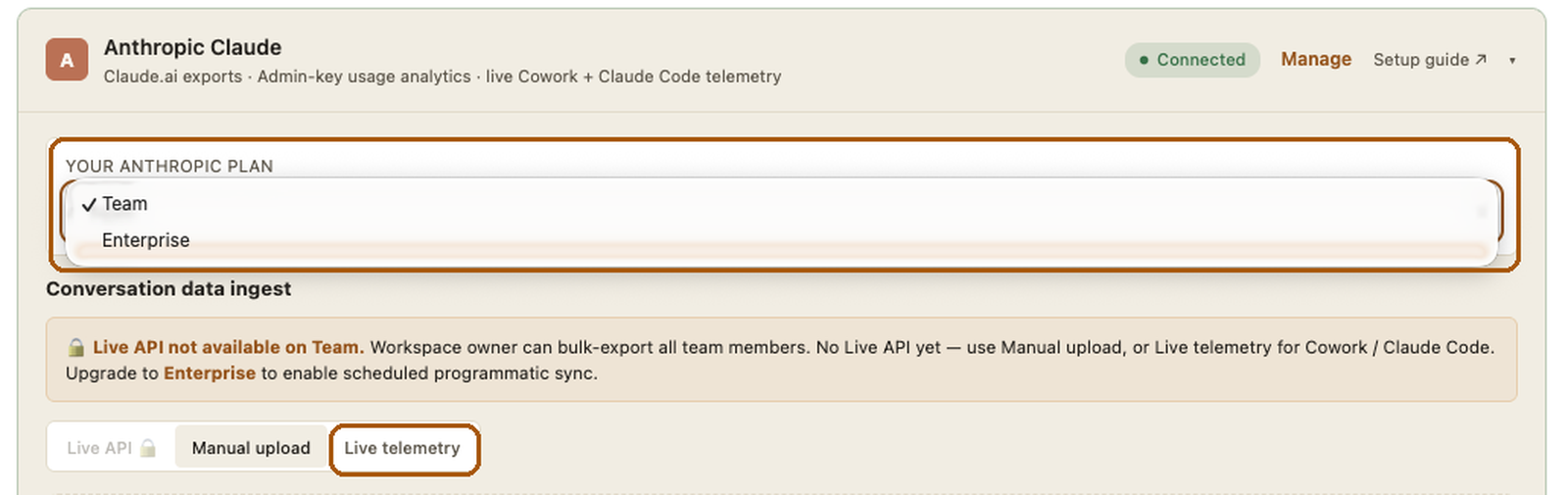
- Choose your plan under Your Anthropic plan.
- Scroll down to Conversation data ingest and select the Live telemetry tab.
- Click Generate your first key.
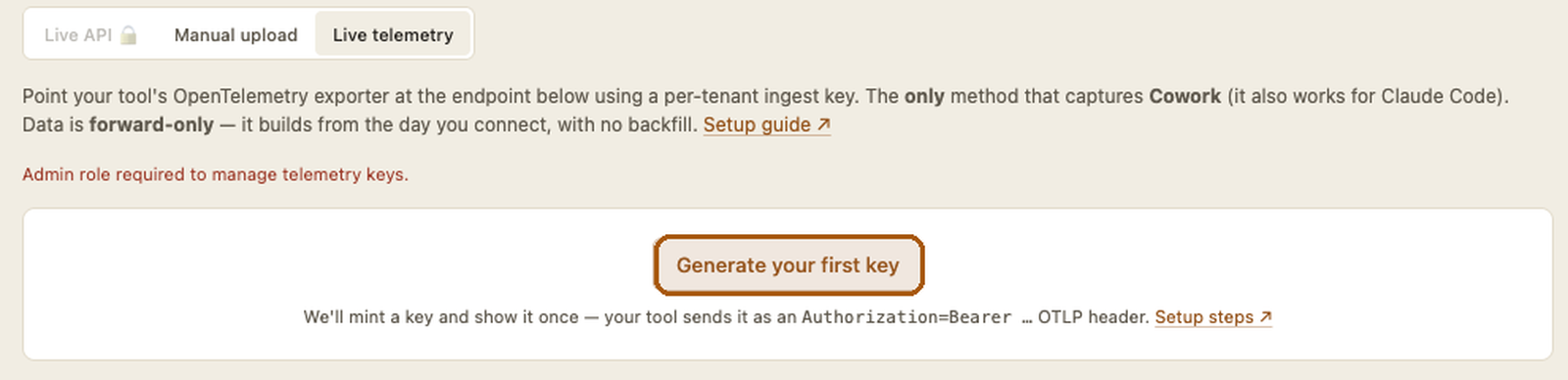 Make sure to copy your key immediately and store it securely. For security purposes, it will be unavailable after navigating away from this screen in SightLift.
 - Copy the OTLP headers value. It already contains your token, so paste it unchanged.
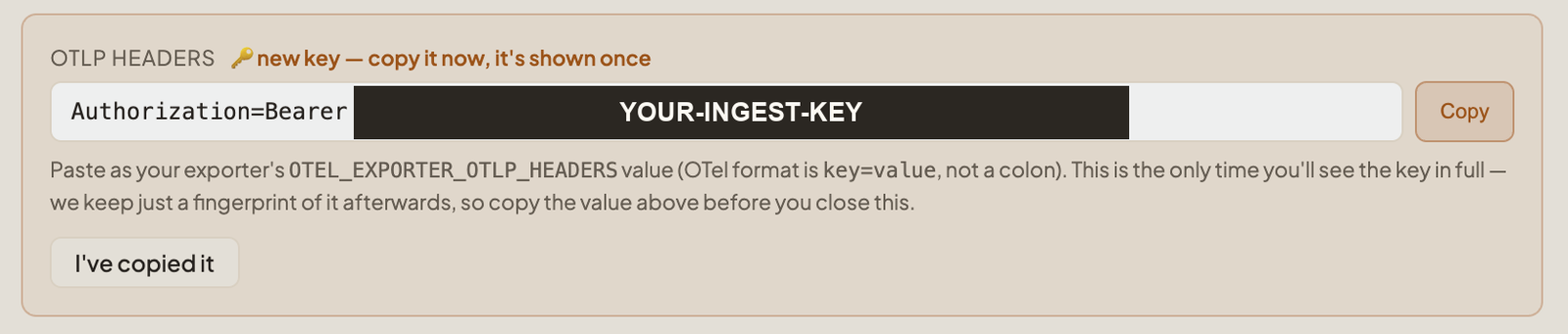
Note: the value you copied already includes the
Authorization=Bearerprefix. Paste it wherever you seeYOUR-OTLP-HEADERS-VALUEbelow, exactly as copied.
Surface 1: Claude Code
Set up Claude Code with SightLift
Update one settings file in Claude Code to configure the CLI, IDE, and desktop app.
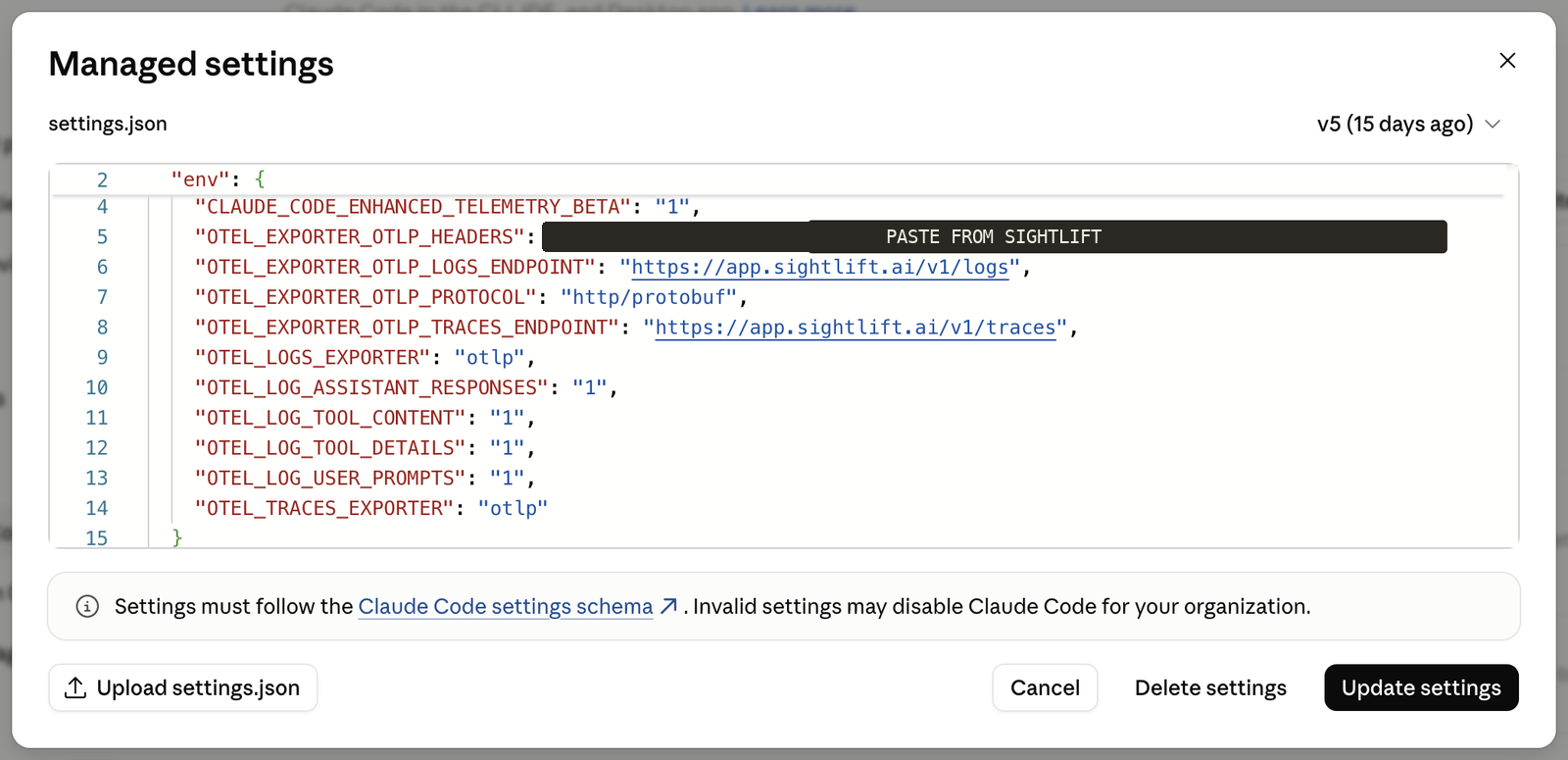
- Paste the JSON below, replacing
YOUR-OTLP-HEADERS-VALUE. If your org already has managed settings, merge theenvblock into the existing file rather than replacing it. - Click Update settings.
{
  "env": {
    "CLAUDE_CODE_ENABLE_TELEMETRY": "1",
    "CLAUDE_CODE_ENHANCED_TELEMETRY_BETA": "1",
    "OTEL_LOGS_EXPORTER": "otlp",
    "OTEL_TRACES_EXPORTER": "otlp",
    "OTEL_EXPORTER_OTLP_PROTOCOL": "http/protobuf",
    "OTEL_EXPORTER_OTLP_LOGS_ENDPOINT": "https://app.sightlift.ai/v1/logs",
    "OTEL_EXPORTER_OTLP_TRACES_ENDPOINT": "https://app.sightlift.ai/v1/traces",
    "OTEL_EXPORTER_OTLP_HEADERS": "YOUR-OTLP-HEADERS-VALUE",
    "OTEL_LOG_USER_PROMPTS": "1",
    "OTEL_LOG_ASSISTANT_RESPONSES": "1",
    "OTEL_LOG_TOOL_DETAILS": "1",
    "OTEL_LOG_TOOL_CONTENT": "1"
  }
}
Claude Code fetches managed settings when it starts and checks for changes every hour. Telemetry settings take effect the next time each user starts Claude Code.
Your team may see an approval prompt. Claude Code can ask each user to approve new managed settings the first time they arrive. If a user declines, Claude Code exits, so tell them to approve it.
Note: managed settings take the highest precedence in Claude Code and cannot be overridden by individual users. See Anthropic's settings reference ↗ and monitoring guide ↗.
Surface 2: Cowork
Set up Cowork with SightLift
Cowork's telemetry settings are on the Monitoring tab of Data and privacy.
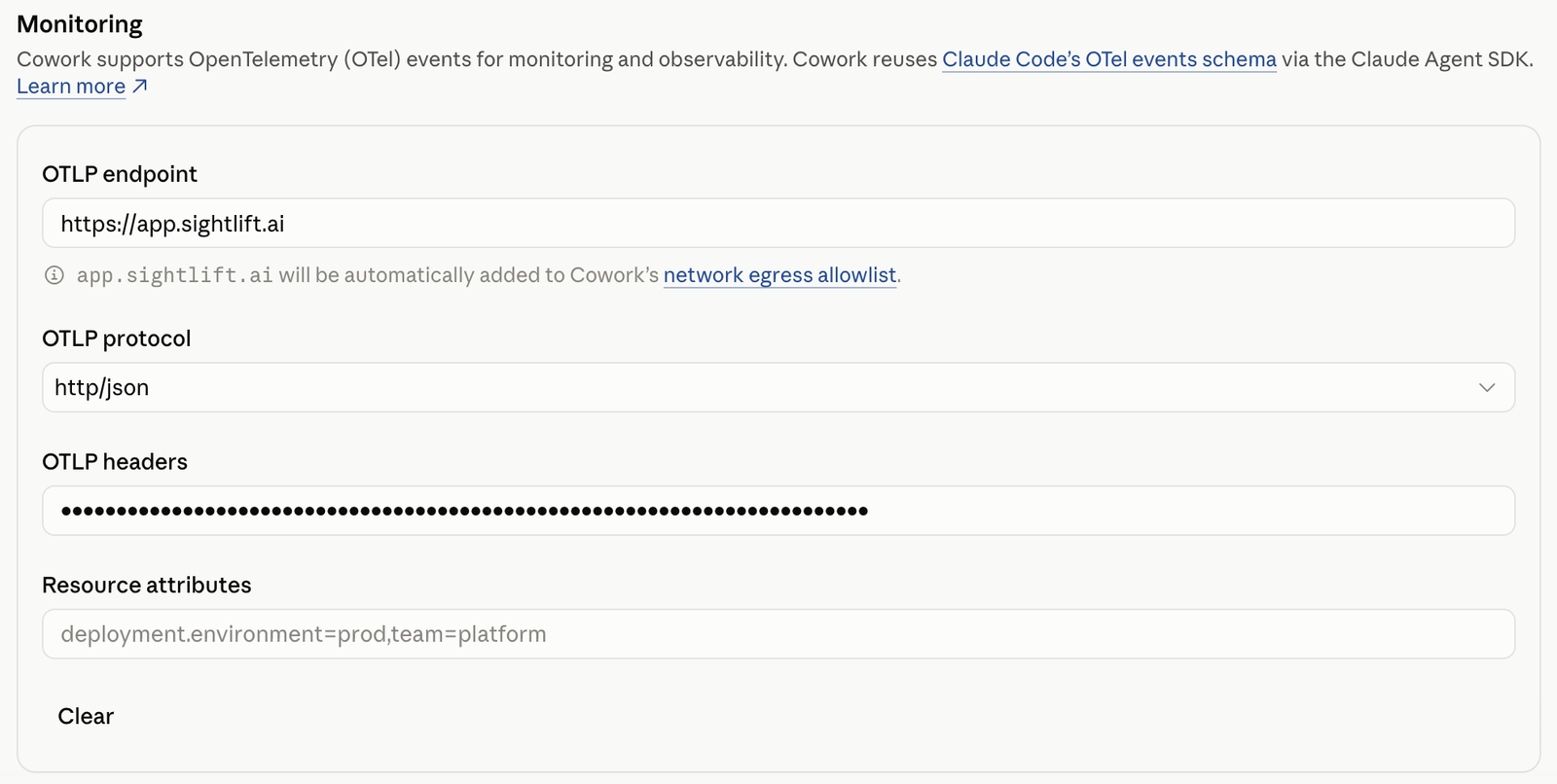
Cowork requires Claude Desktop 1.1.4173 or newer.
| Field | Value |
|---|---|
| OTLP endpoint | https://app.sightlift.ai/v1/logs |
| OTLP protocol | http/json |
| OTLP headers | YOUR-OTLP-HEADERS-VALUE |
| Resource attributes | Leave blank. |
Note: paste the endpoint exactly as SightLift gives it to you. Cowork strips /v1/logs and /v1/traces automatically and shows a message under the field confirming it, so afterwards the field reads https://app.sightlift.ai. That is expected, not an error. Claude Code is the opposite, which is why the JSON above keeps the full paths.
- Fill in the fields above in the Cowork and Cowork in the cloud section, then save. The Monitoring tab has other sections below it. Leave those as they are.
- Cowork reads these settings when a session starts. Sessions already open when you save do not send anything, so only sessions started afterwards reach SightLift. There is no backfill.
Surface 3: Claude Chat
Set up Claude Chat with SightLift
Chat history comes in as a one-time export, so unlike the live feeds it includes everything from before today.
Primary Owner only
Unlike Claude Code and Cowork, this one cannot be done by an Owner. The Export data control is only shown to the Primary Owner. An Owner opening the same page does not see the export control at all.

- Click Export data. Anthropic emails a download link when the archive is ready.
- Upload the
.zipas it comes, without unpacking it, to SightLift via Configuration → Data & sources → Anthropic Claude → Manual upload.
On Enterprise, we can pull chat history through the Anthropic Admin and Compliance APIs instead. If that suits you better, tell us and we will send the key request separately.
Handoff
What happens next
Your work is done!
From here the SightLift team takes over. We will confirm that data is flowing, or reach out with any changes we recommend.
What each flag above unlocks, and what we store, is in the data access & privacy guide. What every source can and can't report is in the data sources guide.
If something on these screens does not match what you see, send us the surface and a screenshot at support@sightlift.ai.